Creating Your First Widget
This guide walks you step-by-step through creating a simple, interactive Counter Widget with WARP containing a count label and + / − buttons.
Architecture Overview
Building a WARP widget consists of three main phases:
┌────────────────────────────────────────────────────────┐
│                   1. Shared Widget                     │
│      Defined in commonMain (State, Actions, UI)        │
└───────────────────────────┬────────────────────────────┘
                            │
            ┌───────────────┴───────────────┐
            ▼                               ▼
┌───────────────────────┐       ┌───────────────────────┐
│   2. Android Host     │       │     3. iOS Host       │
│  WarpGlanceWidget &   │       │  WidgetKit & Swift    │
│  WarpGlanceReceiver   │       │  via Widget Wizard    │
└───────────────────────┘       └───────────────────────┘
Step 1: Define Shared Widget in commonMain
Create CounterWarpWidget.kt inside your shared module's commonMain source set.
1.1 State & Actions
Define serializable models for your state and user interactions:
package com.atriidev.kmpwidget

import kotlinx.serialization.Serializable

/** 1. Widget State */
@Serializable
data class CounterState(
    val count: Int = 0,
)

/** 2. Type-Safe User Actions */
@Serializable
sealed class CounterActions {
    @Serializable data object Increment : CounterActions()
    @Serializable data object Decrement : CounterActions()
    @Serializable data object Reset : CounterActions()
}
1.2 Action Handler
Handle user button taps and update persistent widget state:
class CounterWarpActionHandler(
    private val session: WarpWidgetSession,
) : WarpActionHandler<CounterActions>(CounterActions.serializer()) {

    override suspend fun onAction(action: CounterActions) {
        updateWarpWidgetState(session, CounterWarpWidget) { state ->
            when (action) {
                CounterActions.Increment -> state.copy(count = state.count + 1)
                CounterActions.Decrement -> state.copy(count = state.count - 1)
                CounterActions.Reset -> state.copy(count = 0)
            }
        }
    }
}
1.3 Asset Keys & Resource Management Best Practices
Define cross-platform asset identifiers for icons used in your UI:
/** Asset IDs mapped to platform resources */
object CounterAssets {
    val Plus = WarpAssetId("plus")
    val Minus = WarpAssetId("minus")
}
Resource Management Best Practice
- On iOS,
WarpAssetId("plus")automatically maps to native SF Symbols (systemName: "plus"). - On Android, you map each
WarpAssetIdto native AndroidR.drawableresources inside yourWarpGlanceWidget.
Resource Support Note
Currently, WARP supports drawable resources for icons and images. Support for localized string resources is planned for an upcoming release.
1.4 Complete WarpWidget Definition
Implement WarpWidget<CounterState> and compose your UI using WARP primitives:
Important ID & Group Configuration
id(override val id: String = "CounterWidget"): Must strictly match the iOS Widgetkindidentifier specified in your Swift Widget Extension target (e.g."CounterWidget").iosGroupId(override val iosGroupId: String = "group.com.example.app"): Crucial for iOS state persistence across your main app and widget extension. See the Setup Guide to configure your App Group ID.
object CounterWarpWidget : WarpWidget<CounterState>(CounterState.serializer()) {
    override val id: String = "CounterWidget"
    override val iosGroupId: String = "group.com.example.app"
    override val stateScope: WarpWidgetStateScope = WarpWidgetStateScope.Shared

    override suspend fun defaultState(): CounterState = CounterState()

    @Composable
    override fun Content(session: WarpWidgetSession, state: CounterState) {
        val env = session.environment
        WarpTheme(environment = env) {
            WarpBox(
                modifier = WarpModifier
                    .fillMaxSize()
                    .background(WarpTheme.colors.widgetBackground)
                    .padding(16.dp),
                contentAlignment = WarpContentAlignment.Center,
            ) {
                WarpRow(
                    modifier = WarpModifier.fillMaxWidth(),
                    verticalAlignment = WarpVerticalAlignment.Center,
                ) {
                    WarpButton(
                        text = "−",
                        onClick = CounterActions.Decrement.asClickAction(),
                        modifier = WarpModifier.size(40.dp),
                        colors = WarpButtonColors(
                            backgroundColor = WarpColor.Red,
                            contentColor = WarpColor.White,
                        ),
                    )
                    WarpText(
                        text = "${state.count}",
                        modifier = WarpModifier
                            .weight()
                            .clickable(CounterActions.Reset.asClickAction()),
                        style = WarpTextStyle(
                            fontSize = 24.sp,
                            fontWeight = WarpFontWeight.Bold,
                            color = WarpTheme.colors.onSurface,
                        ),
                    )
                    WarpButton(
                        text = "+",
                        onClick = CounterActions.Increment.asClickAction(),
                        modifier = WarpModifier.size(40.dp),
                        colors = WarpButtonColors(
                            backgroundColor = WarpColor.Green,
                            contentColor = WarpColor.White,
                        ),
                    )

                }
            }
        }
    }

    override fun clickHandlers(session: WarpWidgetSession): List<WarpActionHandler<*>> =
        listOf(CounterWarpActionHandler(session))
}
Understanding stateScope
WARP provides two options for managing widget state scoping:
WarpWidgetStateScope.Shared: Every widget instance across both Android and iOS shares the exact same state. Updating the state in one widget updates all instances.WarpWidgetStateScope.Instance:- Android: Every widget instance added to the home screen has its own unique, isolated state.
- iOS: WidgetKit scopes state per widget family (e.g.,
systemSmall,systemMedium,systemLarge). This means twosmallwidgets will share the same state, while amediumwidget will have its own separate state.
Understanding WarpAsset Image Types
When displaying images using WarpImage, you can wrap your WarpAssetId using one of the following WarpAsset variants:
.asSystem()/WarpAsset.System: Resolves to native SF Symbols on iOS, and mappedR.drawablekeys on Android..asId()/WarpAsset.Id: Resolves to app-bundled assets (iOS Asset Catalog / Android drawable registry).WarpAssets.Android.Uri("file://..."): Resolves local file or content URIs (remotehttp/httpsURLs are not supported due to OS widget resource limits).
Opening Deeplinks with WarpLink
To navigate or open custom deep links when tapping part of your widget, wrap child composables inside WarpLink:
WarpLink maps to native SwiftUI Link. On Android, WarpLink opens an ACTION_VIEW intent with configurable launch flags (androidIntentFlags).
Step 2: Connect Android Host (androidMain)
On Android, WARP uses Jetpack Glance under the hood. Instead of writing raw Glance receivers, WARP provides WarpGlanceWidgetReceiver and WarpGlanceWidget.
2.1 Create Receiver & Widget (CounterWidgetGlance.kt)
Create shared/androidMain/.../CounterWidgetGlance.kt:
package com.atriidev.kmpwidget

import com.atriidev.kmpwidget.shared.R
import com.atriidev.warp_ui.glance.WarpDrawableAsset
import com.atriidev.warp_widget.WarpGlanceWidget
import com.atriidev.warp_widget.WarpGlanceWidgetReceiver
import com.atriidev.warp_widget.WarpWidgetHostApi

/** 1. Broadcast Receiver for Glance */
class CounterWidgetReceiver : WarpGlanceWidgetReceiver() {
    override fun createGlanceWidget() = CounterGlanceAppWidget(createWarpWidget())
    override fun createWarpWidget(): WarpWidgetHostApi = CounterWarpWidget
}

/** 2. Glance App Widget Host */
class CounterGlanceAppWidget(
    private val widget: WarpWidgetHostApi,
) : WarpGlanceWidget() {
    override fun createWarpWidget(): WarpWidgetHostApi = widget

    // Map WARP Asset IDs to Android Drawable Resources
    override fun assets(): List<WarpDrawableAsset> = listOf(
        WarpDrawableAsset(CounterAssets.Plus, R.drawable.ic_plus),
        WarpDrawableAsset(CounterAssets.Minus, R.drawable.ic_minus),
    )
}
2.2 Create App Widget Info XML Metadata
Tell the Android OS about your widget configuration by creating my_app_widget_info.xml inside shared/src/androidMain/res/xml/. Set minWidth and minHeight to 158dp (2x2 grid cells) to align with iOS small widget dimensions:
<appwidget-provider xmlns:android="http://schemas.android.com/apk/res/android"
    android:initialLayout="@layout/glance_default_loading_layout"
    android:minWidth="158dp"
    android:minHeight="158dp"
    android:minResizeWidth="158dp"
    android:minResizeHeight="158dp"
    android:targetCellWidth="2"
    android:targetCellHeight="2"
    android:resizeMode="horizontal|vertical"
    android:widgetCategory="home_screen" />
2.3 Register Receiver in AndroidManifest.xml
Register CounterWidgetReceiver inside shared/src/androidMain/AndroidManifest.xml (or your main Android app module's manifest):
<manifest xmlns:android="http://schemas.android.com/apk/res/android">

    <application>
        <receiver
            android:name="com.atriidev.kmpwidget.CounterWidgetReceiver"
            android:exported="true">
            <intent-filter>
                <action android:name="android.appwidget.action.APPWIDGET_UPDATE" />
                <action android:name="android.intent.action.CONFIGURATION_CHANGED" />
                <action android:name="android.intent.action.UI_MODE_CHANGED" />
            </intent-filter>
            <meta-data
                android:name="android.appwidget.provider"
                android:resource="@xml/my_app_widget_info" />
        </receiver>
    </application>

</manifest>
Step 3: Connect iOS Host (iosApp)
Setting up Swift WidgetKit extensions manually can be verbose because iOS requires defining custom WidgetBundle, AppIntent, TimelineProvider, and WidgetView structures for each widget.
To simplify this, use the interactive Warp Widget Wizard web generator!
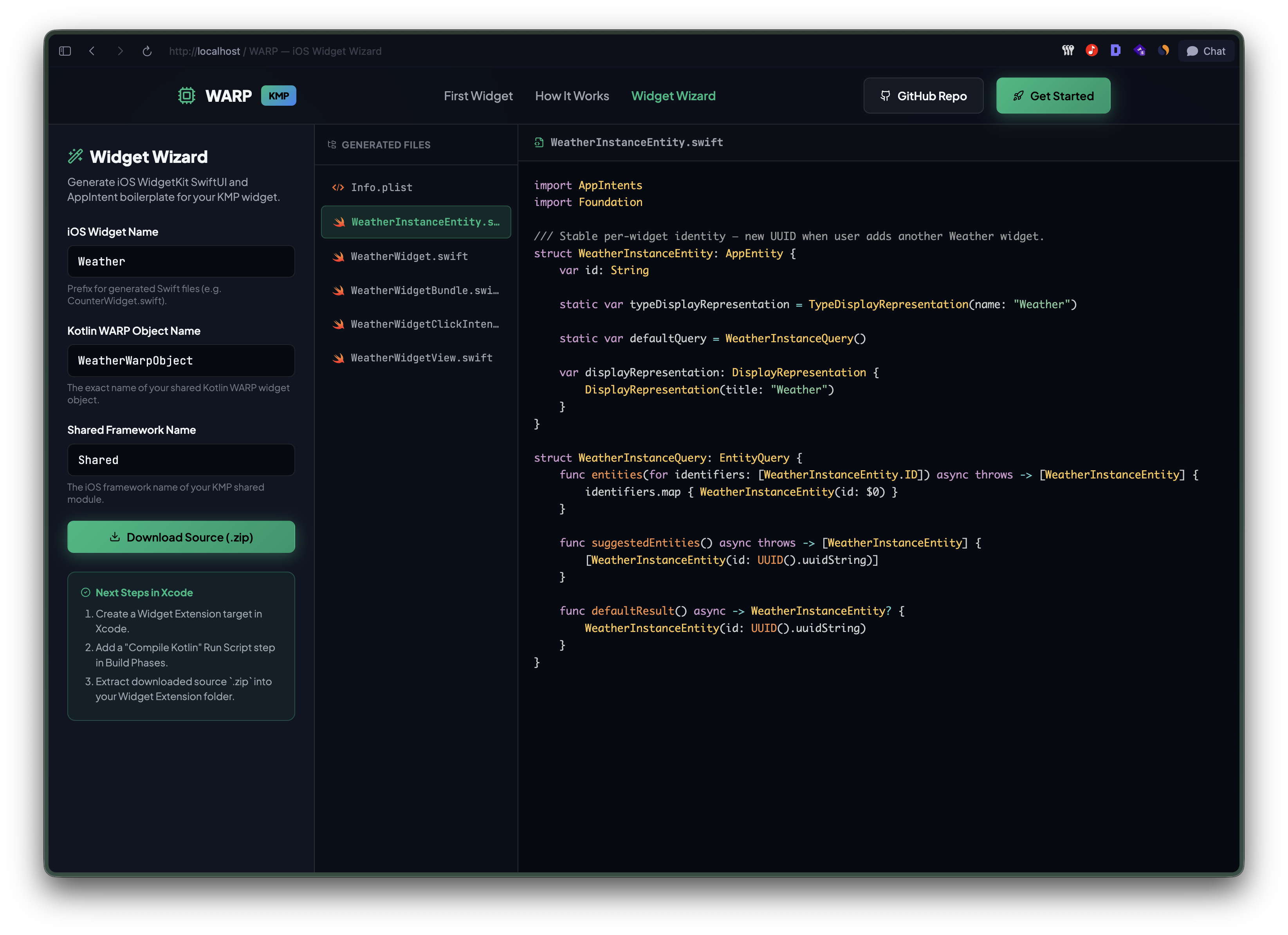
Form Fields Explanation
When configuring the Warp Widget Wizard, specify the following parameters:
| Form Field | Description | Example |
|---|---|---|
| iOS Widget Name | Prefix for all generated Swift files, structs, and intent handlers. | Counter or Weather |
| Kotlin WARP Object Name | The exact name of your shared Kotlin object extending WarpWidget defined in commonMain. |
CounterWarpWidget |
| Shared Module Name | The iOS framework name (baseName) of your KMP shared Gradle module. |
Shared or SharedLogic |
Detailed Field Roles:
iOS Widget Name(e.g.Counter): Controls the file naming scheme (e.g.,CounterWidget.swift,CounterWidgetBundle.swift,CounterWidgetClickIntent.swift).Kotlin WARP Object Name(e.g.CounterWarpWidget): Binds your Swift Widget extension directly to the shared Kotlin object viaCounterWarpWidget.shared.Shared Module Name(e.g.SharedorSharedLogic): Configures the Swiftimportstatement for your compiled Kotlin Multiplatform framework (matchingframework { baseName = "Shared" }inbuild.gradle.kts).
Generated Swift Files Breakdown
Clicking Download Source (.zip) produces a ready-to-use archive containing 6 generated files:
{Name}InstanceEntity.swift: Defines anAppEntityidentifier for per-widget instance scoping.{Name}Widget.swift: Sets up WidgetKit'sStaticConfiguration,TimelineProvider, and main entry view.{Name}WidgetBundle.swift: The@mainextension entry point initializingWarpWidgetHostand registering click intent handlers.{Name}WidgetClickIntent.swift: Interactive SwiftAppIntenthandler (iOS 17+) that dispatches tap actions back to Kotlin.{Name}WidgetView.swift: Live renderer converting WARP UI JSON instructions into native SwiftUI elements.Info.plist: Extension configuration declaringcom.apple.widgetkit-extension.
Quick iOS Integration Steps:
- Ensure you have completed the Xcode target setup in the Setup Guide.
- Open the Warp Widget Wizard.
- Fill in your iOS Widget Name, Kotlin WARP Object Name, and Shared Module Name.
- Click Download Source (.zip).
- Extract the
.ziparchive into your Xcode Widget Extension folder.
Managing & Updating Widget State from Main App
Besides interactive button tap handlers inside the widget UI, your main application (Android App, iOS App, ViewModels, or Background Workers) can read and update widget state programmatically.
1. Updating All Installed Widget Instances
When updating state across all home screen instances (for example, after syncing network data or completing a background task):
import com.atriidev.warp_widget.api.PlatformContext
import com.atriidev.warp_widget.listWarpWidgetIds
import com.atriidev.warp_widget.updateWarpWidgetState

suspend fun updateAllCounterWidgetInstances(
    context: PlatformContext,
    transform: (CounterState) -> CounterState,
) {
    listWarpWidgetIds(context, CounterWarpWidget).forEach { id ->
        updateWarpWidgetState(context, CounterWarpWidget, id, transform)
    }
}
2. Updating Single or Shared Instance State
If your widget uses WarpWidgetStateScope.Shared, or when targeting the primary widget instance directly:
import com.atriidev.warp_widget.api.PlatformContext
import com.atriidev.warp_widget.updateWarpWidgetState

suspend fun updateCounterWidget(
    context: PlatformContext,
    newCount: Int,
) {
    updateWarpWidgetState(context, CounterWarpWidget) { state ->
        state.copy(count = newCount)
    }
}
3. Reading Widget State from Host App
To inspect the currently saved state of an installed widget instance from your main application (or fall back to defaultState() if no widget has been added yet):
import com.atriidev.warp_widget.api.PlatformContext
import com.atriidev.warp_widget.listWarpWidgetIds
import com.atriidev.warp_widget.readWarpWidgetState

suspend fun readCounterWidgetState(context: PlatformContext): CounterState {
    val ids = listWarpWidgetIds(context, CounterWarpWidget)
    if (ids.isEmpty()) return CounterWarpWidget.defaultState()
    return readWarpWidgetState(context, CounterWarpWidget, ids.first())
}
Obtaining PlatformContext across Platforms
- Compose UI (
commonMain): In Compose UI screens or composables, obtainPlatformContextusingrememberPlatformContext: - Android (
androidMain):PlatformContextresolves to your Androidandroid.content.Context(or application context). - iOS (
iosMainor Swift): ObtainPlatformContextusinggetPlatformContextpassing your WARP widget instance:
IDE Plugin Roadmap & Project Support ☕️
We know writing iOS Swift boilerplate manually can feel repetitive. That's why we created the Widget Wizard generator.
An official Xcode / Android Studio Plugin is currently planned to automate iOS widget boilerplate generation directly inside your IDE!
If you find WARP helpful, consider supporting the project to accelerate plugin development:

